Unlink Products from Square
Remove the connection between WooCommerce and Square products to re-export or manage independently.
Remove the link between a WooCommerce product and its Square counterpart. Once unlinked, the product becomes available for export again.
Overview
When you export or import a product, SquareSync creates a link between the WooCommerce and Square products using a meta key called square_product_id. This link enables synchronization between platforms.
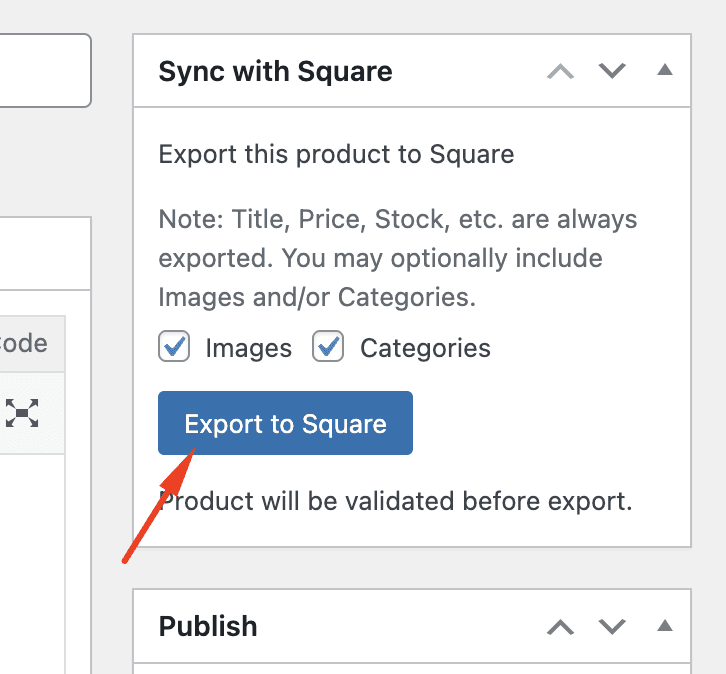
Linked products show a Sync button on the product edit screen. Unlinked products show an Export to Square button instead.
Why Unlink a Product?
- Re-export a product that was previously linked to a different Square item
- Start fresh with product data after making significant changes
- Troubleshoot sync issues by breaking and re-establishing the connection
- Testing sync functionality during development
Step 1: Enable Custom Fields
WordPress hides custom fields by default. You need to enable them first.
- Go to Products in WordPress admin
- Click on the product you want to unlink
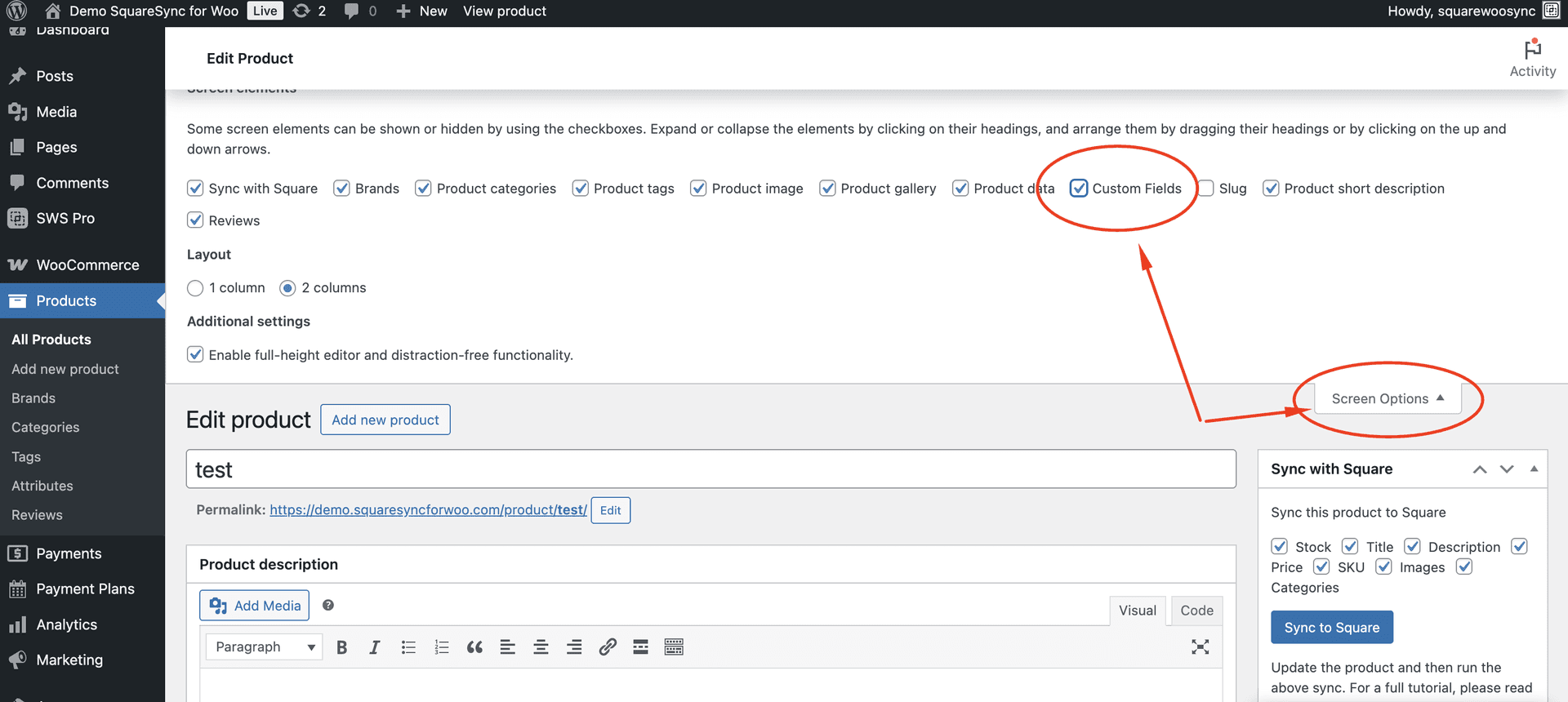
- Click the Screen Options tab in the top-right corner of the screen
- Check the Custom Fields checkbox
Step 2: Find the Square Product ID
- Scroll down the product edit page
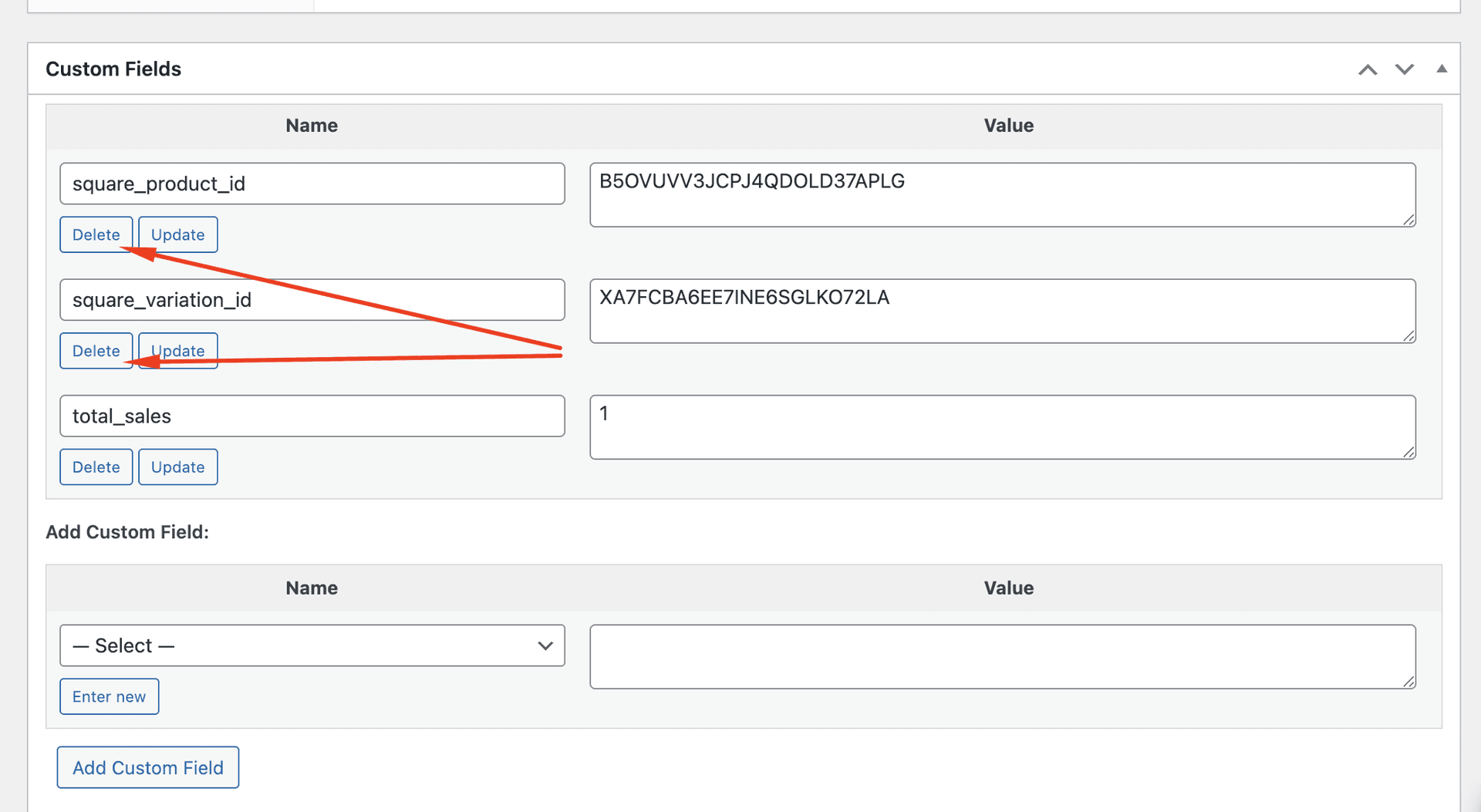
- Locate the Custom Fields section
- Find the entry with the name
square_product_id
Step 3: Delete the Meta Key
- Click Delete next to the
square_product_identry - Click Update to save the product
Step 4: Verify the Unlink
After saving, the product should now show an Export to Square button instead of a Sync button.
Unlinking a product does NOT delete it from Square. The Square product remains unchanged—only the connection between platforms is removed.
Re-linking Products
After unlinking, you have two options:
Export as New Product
Click the Export to Square button to create a new product in Square. This does not re-link to the original Square product—it creates a completely new item.
Link to Existing Square Product
To re-link to an existing Square product:
- Ensure the WooCommerce product SKU matches the Square product SKU
- Go to SquareSync for Woo > Products
- Run the Auto-Matcher to automatically link products with matching SKUs
Troubleshooting
Custom Fields section not appearing
- Ensure you checked the Custom Fields box in Screen Options
- Scroll down—it may be below other meta boxes
- Try refreshing the page after enabling
square_product_id not found
- The product may not be linked to Square
- Check if the product was imported or exported previously
- Look for similar meta keys like
_square_product_id
Product still shows Sync button after deletion
- Ensure you clicked Update after deleting the meta key
- Clear any caching plugins
- Refresh the page and check again