Set Up Square Payments
Enable the Square payment gateway on your WooCommerce store — credit cards, digital wallets, gift cards, and delayed capture, with every sale recorded as a real Square order.
Take payments through Square directly on your WooCommerce checkout. The gateway handles credit and debit cards, Apple Pay and Google Pay, Afterpay, Square gift cards, and delayed capture — and every sale is recorded in Square as a real, itemized Square order, so your Square reporting, inventory, and customer history stay accurate without any extra syncing.
Once your Square account is connected, enabling payments takes a couple of clicks.
Requirements
- SquareSync for Woo Pro installed and activated.
- Your Square account connected (Connect to Square guide) with a location selected in SWS Pro → Settings — the gateway processes payments against that location.
Enable the payment gateway
- Go to WooCommerce → Settings → Payments
- Find Square Payments by SquareSync for Woo in the provider list
- Enable it, then click Manage to open its settings
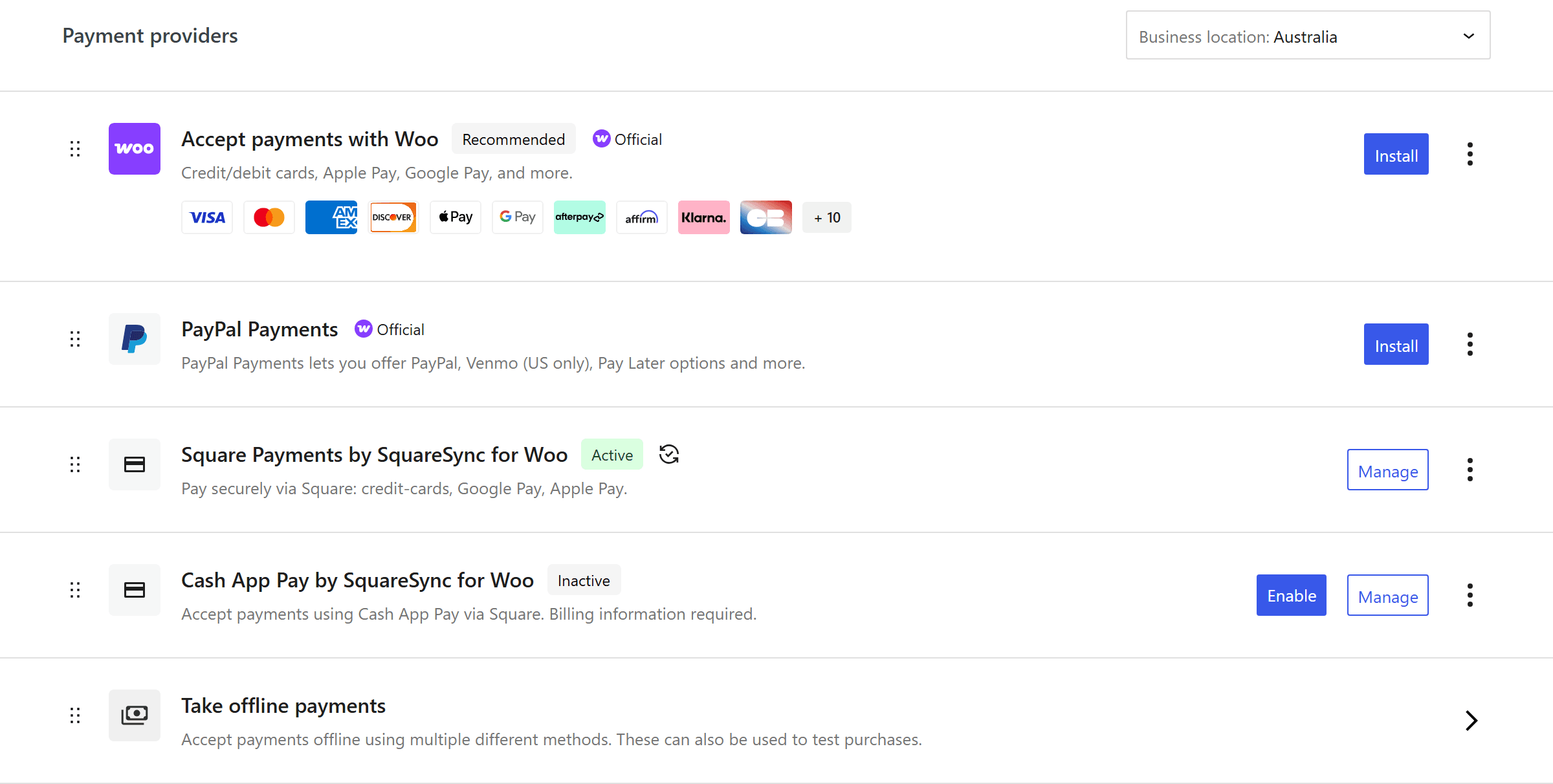
Enabling the gateway automatically switches off the plugin's separate order-transaction sync. That's deliberate: the gateway records each sale in Square itself, so pushing order transactions as well would count every sale twice in Square's reporting.
Gateway settings
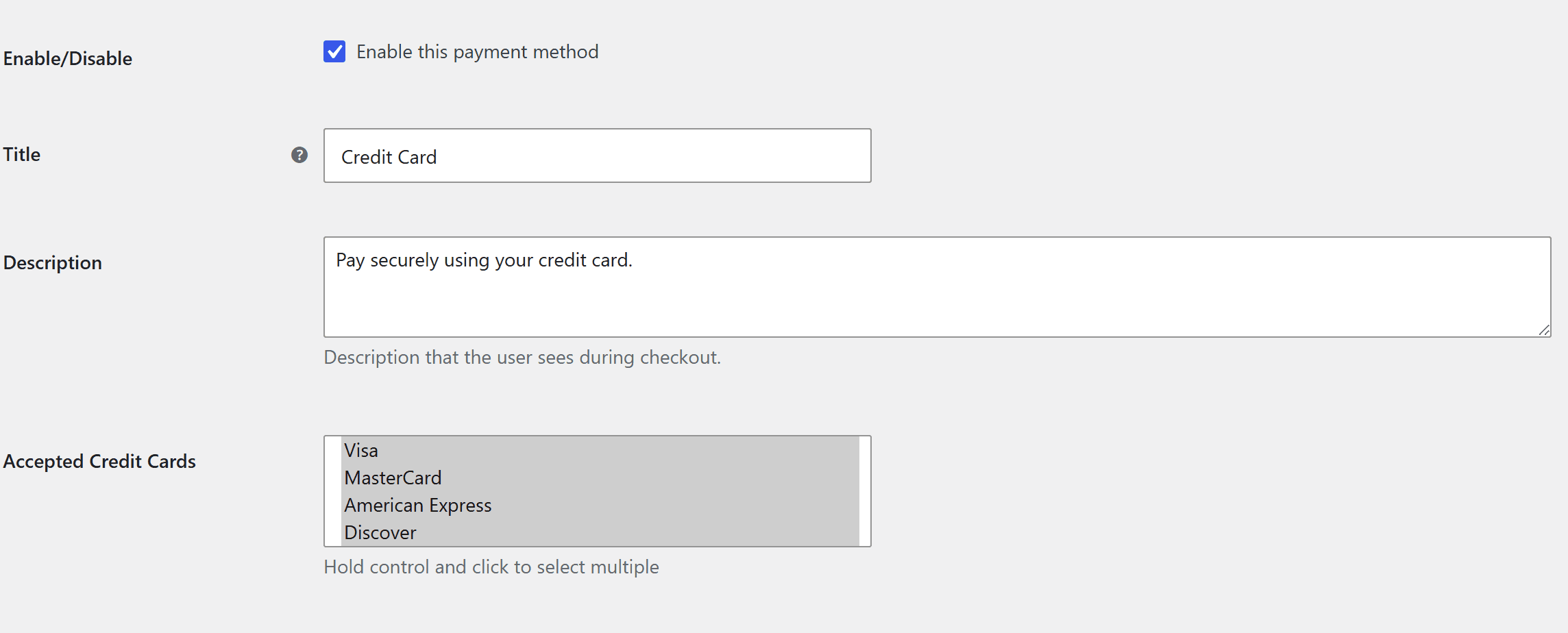
| Setting | What it does |
|---|---|
| Enable/Disable | Turns the gateway on or off |
| Title | The payment method name shown at checkout (default "Credit Card") |
| Description | Optional text shown under the title at checkout |
| Accepted Credit Cards | Which card brands to accept: Visa, MasterCard, American Express, Discover, JCB, Diners Club, UnionPay |
The same screen carries the gateway's other feature sections, each with its own guide:
- Digital Wallets & Express Checkout — Apple Pay, Google Pay, Afterpay, and express buttons on product/cart/checkout pages. See Google Pay & Apple Pay.
- Square Gift Cards — sell and redeem Square gift cards at checkout. See Gift Cards.
- Payment Capture & Card on File — authorize now / capture later, mandatory card saving, and charging saved cards from the order screen. See Delayed Capture & Saved Cards.
How sales are recorded in Square
For every checkout the gateway creates a Square order (line items linked to your Square catalog where products are synced) and attaches the Square payment to it. That means:
- The sale appears in the Square Dashboard as a normal itemized order — receipts, reporting, and customer history included.
- Square inventory moves for the items sold, and the plugin keeps WooCommerce and Square stock consistent (one deduction per sale, never two).
- The WooCommerce order stores its Square transaction ID, and refunds issued from WooCommerce refund the Square payment.
Test before going live
Connect the plugin to a Square sandbox account (SWS Pro → Settings → connection) to run test payments end to end — the gateway follows the connection's environment automatically. Sandbox test cards never charge real money. Switch the connection back to live when you're done.
Next steps
Google Pay & Apple Pay
Digital wallets and express checkout buttons
Delayed Capture & Saved Cards
Authorize now, capture later — and cards on file
Gift Cards
Sell and redeem Square gift cards online
Order Import
Bring Square POS orders into WooCommerce
Troubleshooting
The gateway isn't in the payment providers list
- Confirm SquareSync for Woo Pro is activated with a valid licence.
- Check the Square connection status under SWS Pro → Settings — the gateway needs a connected account.
Payments fail at checkout
- Make sure a location is selected in SWS Pro → Settings and that the location is active in your Square Dashboard.
- Check your Square account is in good standing and able to take online payments.
- A card decline reason from Square is shown to the customer and recorded in the order notes.
The Square order is missing for a paid order
If Square was unreachable when the card was charged, the payment still completes safely — the order is flagged Failed in the Square column of the WooCommerce orders list with the reason on hover, so you can re-create the Square order manually. The customer's payment is never lost.