Google Pay & Apple Pay
Digital wallets on the Square gateway — Apple Pay, Google Pay, Afterpay, and express checkout buttons on product, cart, and checkout pages.
Digital wallets give customers a one-tap checkout with the card, shipping address, and contact details they already have on their device. The Square gateway supports Apple Pay, Google Pay, and Afterpay/Clearpay, both as payment options at checkout and as express checkout buttons on product, cart, and checkout pages that skip the form entirely.
All of it is configured on one screen: WooCommerce → Settings → Payments → Square Payments by SquareSync for Woo → Digital Wallets.
Requirements
- The Square gateway enabled (Set Up Payments).
- HTTPS on your site — wallets refuse to run on plain HTTP.
- For Afterpay: Afterpay must be enabled on your Square account first.
Enabling wallets
- Go to WooCommerce → Settings → Payments and open the Square gateway's settings
- Scroll to Digital Wallets and tick the wallets you want to offer
- Save changes
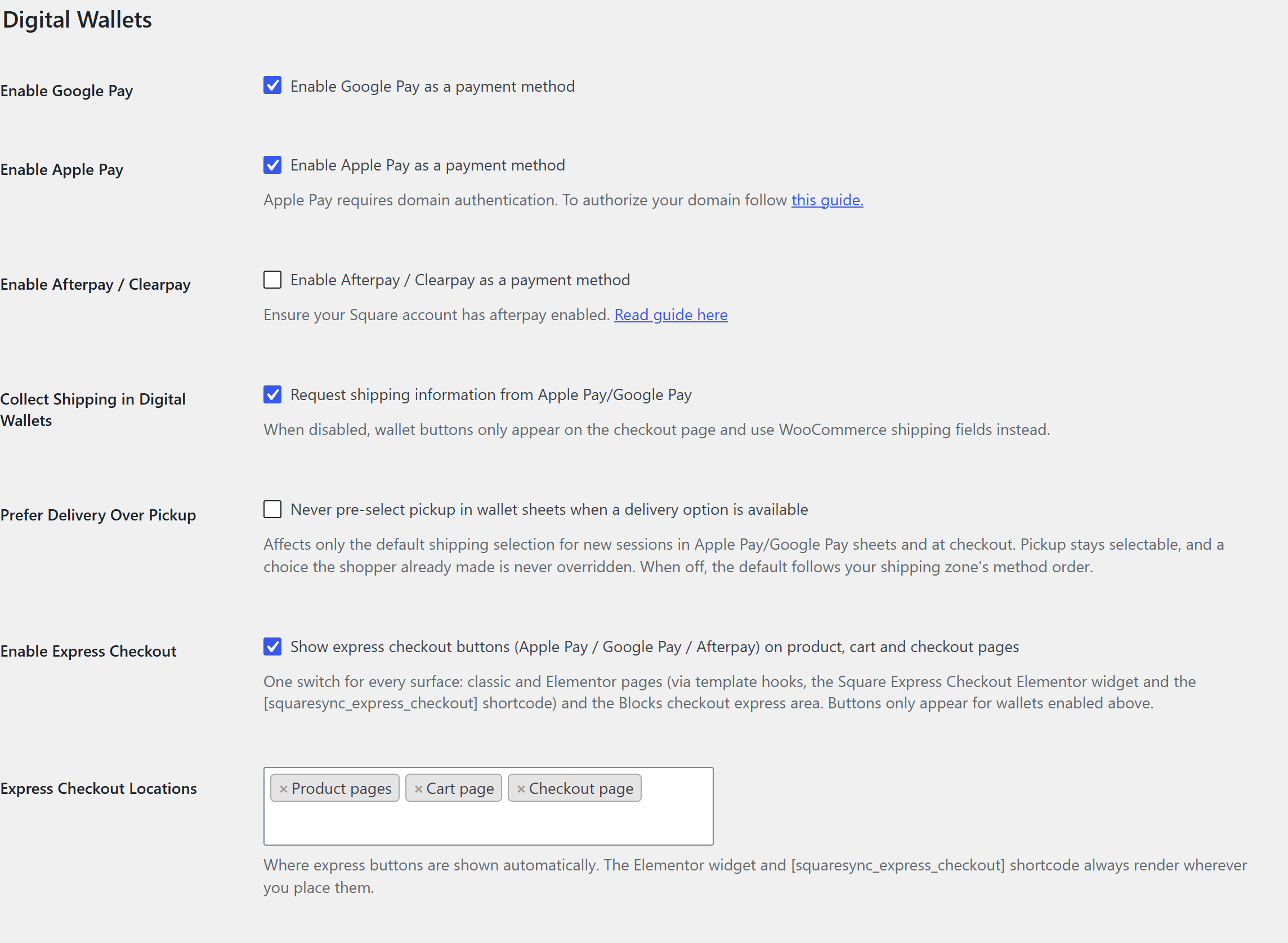
| Setting | What it does | Default |
|---|---|---|
| Enable Google Pay | Offers Google Pay where the customer's browser supports it | Off |
| Enable Apple Pay | Offers Apple Pay in Safari on Apple devices — requires domain authentication (see below) | Off |
| Enable Afterpay / Clearpay | Offers Afterpay — your Square account must have Afterpay enabled | Off |
| Google Pay Button Colour | Default lets Google pick for the page background; otherwise Black or White | Black |
| Apple Pay Button Style | Black, White or White with outline | Black |
| Afterpay / Clearpay Button Colour | Black or Mint | Black |
| Collect Shipping in Digital Wallets | Asks for the shipping address inside the wallet sheet; when off, wallet buttons only show at checkout and use WooCommerce's fields | On |
| Prefer Delivery Over Pickup | Never pre-selects pickup in wallet sheets when a delivery option exists (only affects the default; the shopper's choice always wins) | Off |
| Enable Express Checkout | Shows express wallet buttons on product, cart, and checkout pages | On |
| Express Checkout Locations | Which of those surfaces show the buttons automatically | Product, Cart, Checkout |
Apple Pay domain authentication
Apple requires your domain to be verified before Apple Pay will appear. Follow the link next to the Apple Pay setting to authorize your domain — until that's done, the button stays hidden even with the box ticked.
Express checkout buttons
With Enable Express Checkout on, wallet buttons appear on the surfaces you pick — product pages, the cart, and the checkout — and one tap opens the wallet sheet with the item(s), shipping options, and total ready to confirm. One switch covers every surface: classic themes, the WooCommerce Blocks checkout's express area, and Elementor.
Want the buttons somewhere specific? Two placements always render wherever you put them, regardless of the locations setting:
- The Square Express Checkout Elementor widget
- The
[squaresync_express_checkout]shortcode
Buttons only ever show for wallets that are enabled (and supported by the visitor's device) — an iPhone user in Safari sees Apple Pay, a Chrome user sees Google Pay.
What customers see
- Apple Pay (Safari on iPhone, iPad, or Mac): the Apple Pay sheet opens with their saved cards and addresses; they confirm with Face ID, Touch ID, or their passcode.
- Google Pay (Chrome on Android or desktop with saved cards): the Google Pay overlay shows their cards; they confirm and the payment completes.
- Afterpay: the customer is walked through Afterpay's approval and instalment schedule, and you're paid in full by Square as usual.
Wallet orders land in WooCommerce and Square exactly like card orders — itemized Square order, correct inventory movement, refunds from the order screen.
Troubleshooting
The Apple Pay button isn't showing
- Apple Pay only appears in Safari on Apple devices with a card in Wallet.
- Complete domain authentication (link next to the setting) — this is the most common cause.
- Confirm the site is served over HTTPS with a valid certificate.
The Google Pay button isn't showing
- The visitor needs a browser with Google Pay support and a saved card (Chrome, signed in).
- Confirm HTTPS and that Google Pay is ticked in the Digital Wallets settings.
Afterpay isn't offered
- Afterpay must be active on your Square account, not just ticked in the plugin.
- Afterpay only shows for order totals within the limits Square sets for your account.
Express buttons show on pages where you don't want them
Untick that surface in Express Checkout Locations — or turn Enable Express Checkout off entirely and place the shortcode/widget only where you want buttons.
The wallet sheet shows no shipping options
If Collect Shipping in Digital Wallets is off, wallet buttons only appear on the checkout page, where WooCommerce's own address fields apply. If it's on, make sure your shipping zones cover the customer's wallet address.