Product Sync Settings
Real-time syncing, the scheduled safety-net pass, stock buffers, import behaviour, and product matching — everything under Settings → Products.
SWS Pro → Settings → Products controls how products stay in step between Square and WooCommerce. It's organised into three tabs: Sync Behavior (real-time sync and the scheduler), Import Settings (how products are created and stock is counted), and Product Matching (automation and matching rules).
The healthy default for most stores: real-time sync ON with stock in both directions and product details flowing from wherever you edit them, plus a daily scheduled pass as a safety net.
Sync Behavior
Real-time sync

With the master toggle on, changes sync within seconds — Square webhooks push Square changes to WooCommerce, and WooCommerce edits push back the other way. Two things sync, controlled separately:
- Keep stock in sync — sales, refunds, and stock edits on either platform update the other, in both directions. This is the toggle that keeps POS and web sales from overselling each other. (An Advanced link lets you limit which stock changes sync if you need finer control.)
- Product details — title, SKU, price, description, images, category, metafields, modifiers, tax status, and status. Details flow one way: pick Edit in Square or Edit in WooCommerce to declare where you edit products, and tick exactly the fields you want synced. Edits made on the receiving platform can be overwritten on the next sync — that's the point of declaring a direction. Pick Don't sync to keep details manual while stock still syncs.
The What will happen summary at the bottom of the card restates your configuration in plain language — worth a glance after any change.
The Status field only re-publishes drafts while Product import status (Import Settings tab) is set to Published. While that's set to Draft, sync never publishes a product on its own — imports, auto-created products, and un-archived products all stay drafts until you publish them.
Order flow (website sales appearing in Square, POS sales appearing in WooCommerce) is configured separately under Settings → Orders — product sync handles catalog and stock, not orders.
Stock syncing locations
Running multiple Square locations? By default WooCommerce tracks your default location's stock. Enable Combine stock from all Square locations to make WooCommerce show the total across every location instead. (With Order Splitting active this is forced on — split orders need inventory from all locations.)
Refresh Square stock when a product is added to the cart (since 10.2.0, off by default) — when a shopper adds a Square-linked product to their cart, the plugin pulls that item's current Square stock in the background. This closes the short window where an in-store POS sale hasn't reached WooCommerce yet (webhook latency, or a missed webhook) and the shopper could oversell. The refresh reuses the normal inbound stock path, so combine-locations mode, stock buffers, per-product locks, and loop guards all apply exactly as they do for a real webhook. Requires real-time Square → WooCommerce stock sync to be enabled; refreshes are throttled to once per minute per item.
Export locations
(since 10.2.0) By default, products exported from WooCommerce are made available at every Square location. If you only sell online inventory at some locations, tick the locations exports should be scoped to — new exports (and newly created variations on linked products) are then only available at those Square locations.
With specific export locations selected, an extra toggle appears: Trashing a product removes it from these locations. When a linked product is moved to the WooCommerce trash, the Square item is marked unavailable at the selected locations (rather than deleted or left purchasable); restoring the product from the trash makes it available again. This is a softer alternative to Automatically delete products in Square, which takes precedence when enabled.
Automatic update scheduler
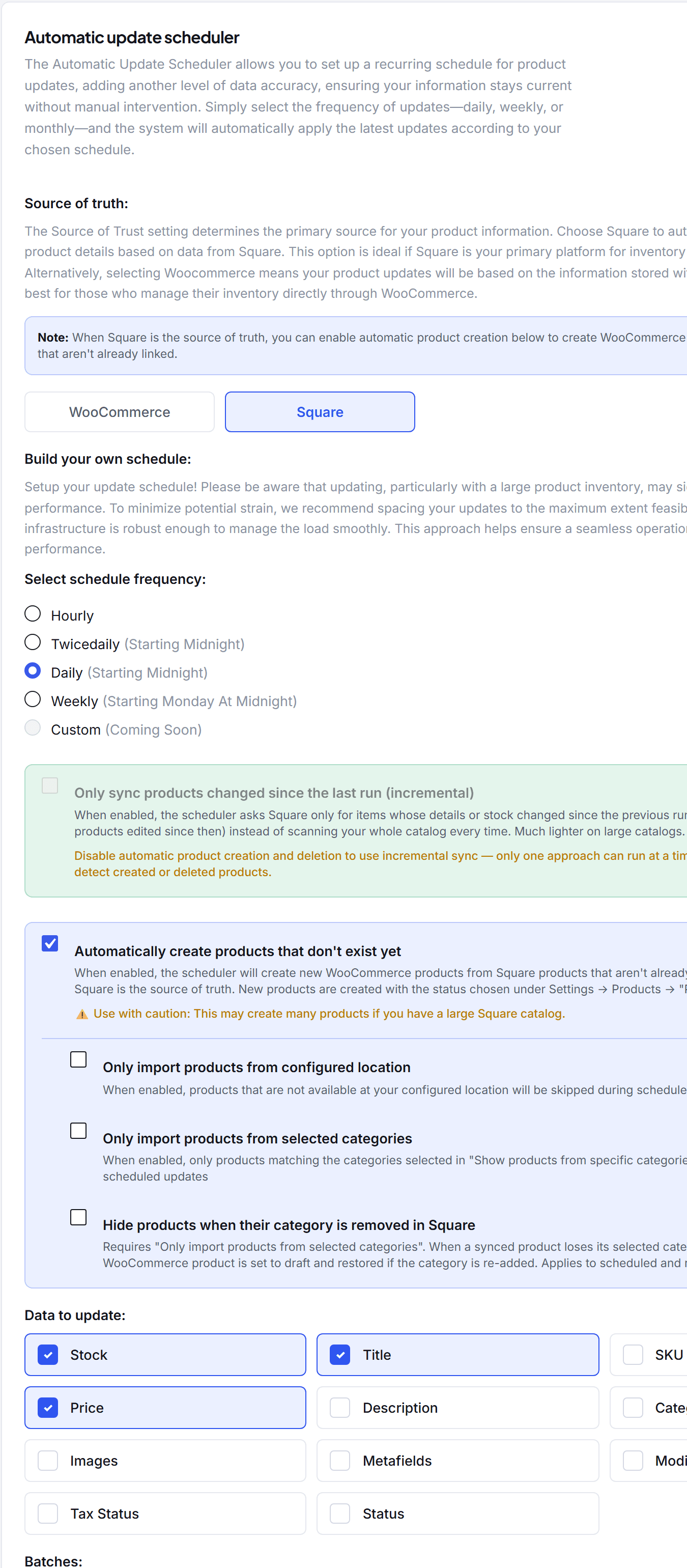
The scheduler is a recurring reconciliation pass — it re-reads the catalog on a schedule and fixes anything real-time sync missed (a webhook dropped during a server outage, changes made while sync was off). Most stores run it daily as a safety net alongside real-time sync.
| Setting | What it does |
|---|---|
| Source of truth | Square updates WooCommerce from Square's data; WooCommerce pushes the other way |
| Frequency | Hourly, twice daily, daily (from midnight), or weekly (Monday midnight) |
| Incremental sync | Only process products changed since the last run — much lighter on large catalogs. Can't be combined with automatic creation/deletion (incremental can't detect created or deleted products) |
| Automatically create products | With Square as source of truth: Square items that aren't linked yet are created in WooCommerce, using your Product import status. Optional filters: only from your configured location, only from selected categories, and hide products whose category is removed in Square |
| Data to update | Tick exactly what the pass may touch: stock, title, SKU, price, description, categories, images, metafields, modifiers, tax status, status |
| Batches | Products per batch — raise for speed, lower if your server struggles |
Import Settings
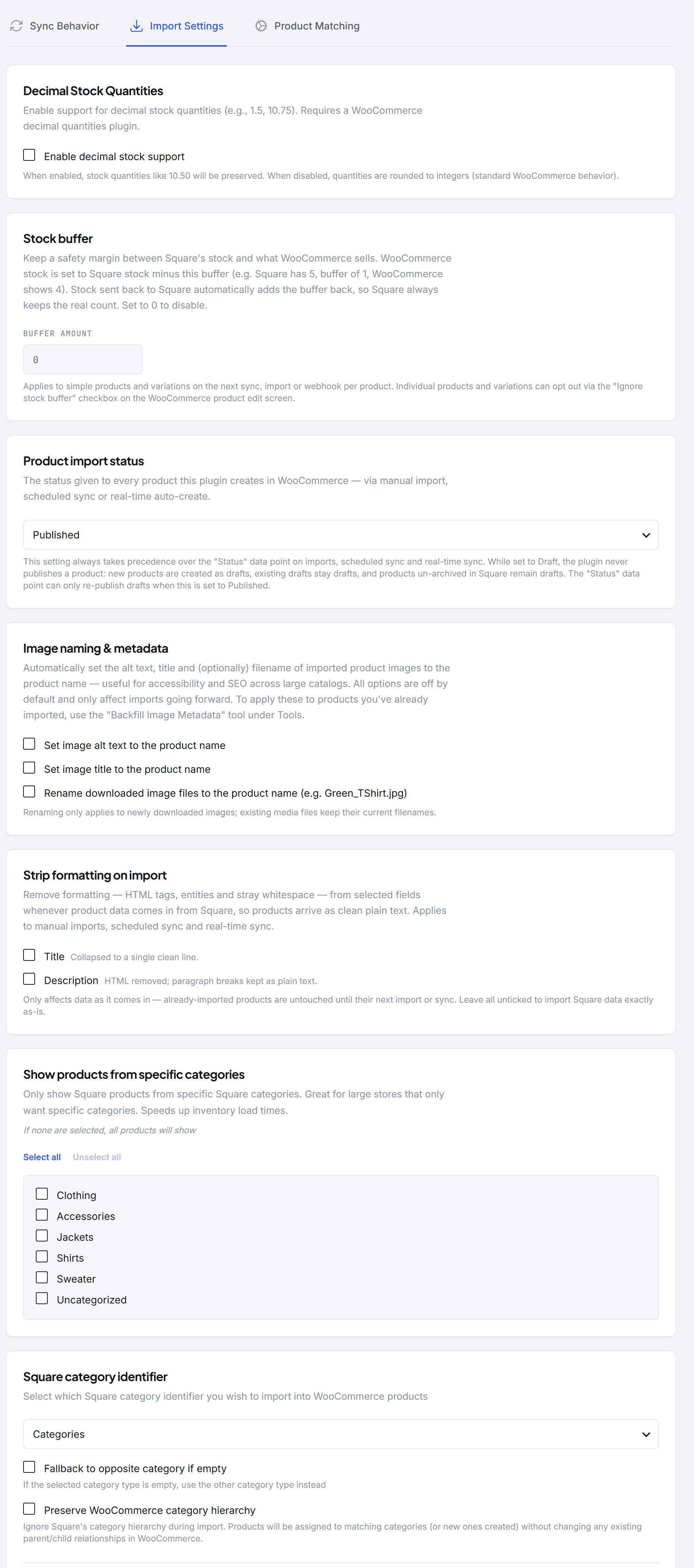
| Setting | What it does |
|---|---|
| Decimal stock quantities | Preserve fractional stock like 10.5, for stores selling by length or weight. Requires a WooCommerce decimal-quantities plugin — WooCommerce itself stores whole numbers only, so without one the plugin keeps working in whole-number mode and shows a warning in wp-admin rather than pretending fractions were saved. Fractions are truncated, not rounded (2.9 becomes 2), so a sync never publishes stock you do not have; while the setting is unsupported, Stock Checker skips any item Square holds a fractional count for instead of rounding it away. Note that Square only accepts a fractional quantity on an order for items that are sold by a measurement unit in Square (yards, metres, kilograms) — set that on the item in the Square Dashboard, or fractional orders for it will be refused |
| Stock buffer | A safety margin against overselling: WooCommerce shows Square's stock minus the buffer, and pushes back Square's real count with the buffer re-added — Square always keeps the true number. Individual products can opt out via the Ignore stock buffer checkbox on their edit screen |
| Product import status | Published or Draft for every product the plugin creates — manual imports, scheduled sync, and auto-create alike. While set to Draft, the plugin never publishes a product on its own |
| Image naming & metadata | Set imported images' alt text, title, and (optionally) filename to the product name — accessibility and SEO for large catalogs. Off by default; the Backfill Image Metadata tool under Tools applies it to already-imported products |
| Image sizes | (since 10.5.3) Generate image sizes during the import. By default an import saves the original image and generates WordPress's thumbnail sizes in a background job afterwards; if that step fails on your server (very large photos, low PHP memory) an image can show without thumbnails or as too small. Turn this on to generate the sizes during the import — each product takes a little longer, but every image is complete when the import finishes. Applies to manual imports, scheduled sync, and real-time sync |
| Rich product descriptions | (since 10.2.0, on by default) Import Square's formatted (HTML) description — bold text, lists, and paragraphs from the Square Dashboard are preserved instead of arriving as plain text. Turn off to import plain text only. When Strip formatting on import is enabled for the description, stripping still wins |
| Strip formatting on import | Import chosen fields (title, description) as clean plain text — HTML tags, entities, and stray whitespace removed, with descriptions keeping their paragraph breaks. Applies wherever product data comes in from Square: manual imports, scheduled sync, and real-time sync. Also toggleable from the import dialog |
| Show products from specific categories | Limit the Products browser (and scheduled imports using the category filter) to chosen Square categories — faster loads on big catalogs |
| Square category identifier | Which Square category type maps to WooCommerce categories, with an optional fallback to the other type when empty, and a Preserve WooCommerce category hierarchy option that assigns matching categories without restructuring your existing parent/child tree |
Product Matching
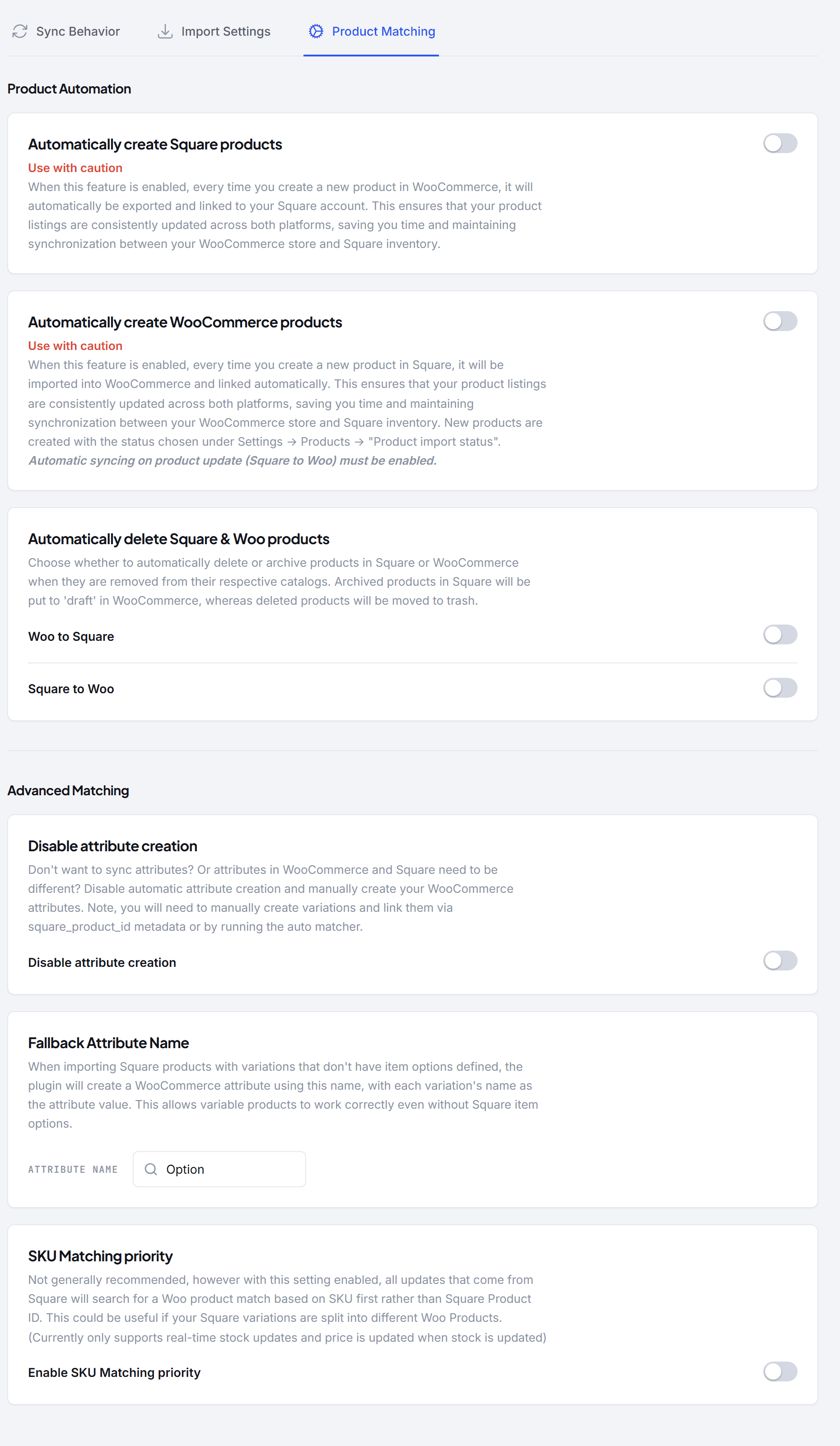
Product automation — three switches, all off by default, all deliberately cautious:
- Automatically create Square products — every new product you publish in WooCommerce is exported to Square and linked.
- Automatically create WooCommerce products — every new Square item is imported and linked (requires Square → WooCommerce real-time sync; uses your Product import status).
- Automatically delete Square & Woo products — per direction: deleting a product on one platform trashes it on the other, and archiving in Square sets the WooCommerce product to draft rather than deleting it.
Advanced matching:
- Disable attribute creation — stop the plugin creating WooCommerce attributes from Square options; you manage attributes and variations yourself (link them by SKU with the auto matcher, or via
square_product_idmeta). - Fallback attribute name — Square variations without item options still need a WooCommerce attribute to hang variations on; this names it (default "Option"), with each variation's name as a value.
- SKU matching priority — updates from Square match WooCommerce products by SKU first instead of Square catalog ID. Only for unusual setups (e.g. one Square item's variations split across separate WooCommerce products); currently applies to real-time stock updates (price updates ride along with stock). Not generally recommended.
Recommended configurations
| Business | Real-time | Scheduler | Details direction |
|---|---|---|---|
| Retail-first (POS is home base) | On, stock both ways | Daily, source Square | Edit in Square |
| Online-first | On, stock both ways | Daily, source WooCommerce | Edit in WooCommerce |
| Very large catalog | On, stock both ways | Daily + incremental sync | Wherever you edit |
Troubleshooting
Changes in Square aren't reaching WooCommerce
- Confirm Real-time sync is on and the field in question is ticked under Product details (with the direction set to Edit in Square).
- Check SWS Pro → Webhooks — real-time Square → WooCommerce updates arrive by webhook, and delivery failures are logged there.
- The scheduler catches anything missed on its next pass — check it's enabled.
Changes in WooCommerce aren't reaching Square
- The details direction must be Edit in WooCommerce for detail fields to push; stock pushes whenever Keep stock in sync is on.
- Only linked products sync — check the product has a Square link (Sync button on its edit screen).
My edits keep getting overwritten
That's the details direction doing its job — you edited on the receiving platform. Either switch the direction, untick that field, or make the edit on the source platform.
Stock is off by a fixed amount on every product
That's the stock buffer — WooCommerce deliberately shows Square's count minus the buffer. Set it to 0 to disable, or use the per-product Ignore stock buffer checkbox.
Keep one product's website stock separate from Square
Use the Square stock sync setting on the product's Inventory panel (on each variation's row for variable products, or Quick/Bulk Edit on the Products list) (since 10.4.22):
| Option | What it does |
|---|---|
| Both ways (default) | Stock follows Square, and WooCommerce changes are sent to Square |
| Ignore Square's updates | Square never changes the item's stock or in/out-of-stock status. WooCommerce still sends its stock to Square — use this when WooCommerce is the source of truth for the item |
| Paused | No stock sync in either direction. Square keeps its own count untouched, and the website stock is managed on its own — e.g. hiding a product online while it keeps selling in store |
Choose Paused, not Ignore Square's updates, when Square should keep counting. With Ignore Square's updates, WooCommerce's number stops following Square, and the next stock push for that product writes it over Square's count (shown in Square's stock history as "re-counted via SWS Pro"). When you switch a paused item back to Both ways, the plugin first pulls Square's current count into WooCommerce (since 10.4.23), so nothing out of date is sent to Square. If Square can't be reached at that moment, the item stays on Paused and the sync log says why — try again, or use Tools → Stock Checker → Pull from Square.
Scheduled sync is slow or times out
Lower the batch size, enable incremental sync (if you're not using auto create/delete), or reduce the data points the pass may touch — images are the heaviest.