Connect to Square
Securely link your Square account to WooCommerce with OAuth 2.0 — plus choosing your environment and default location.
Everything the plugin does — syncing, payments, orders, loyalty — runs through one secure connection to your Square account. Connecting uses OAuth 2.0: you authorize the plugin on Square's own login page, and no Square password or manually copied access token is ever stored in WordPress.
Connect your account
- In WordPress admin, go to SWS Pro → Settings → Connection
- Click Connect to Square — you're redirected to Square's secure login page
- Sign in to Square (if you aren't already), review the requested permissions, and click Allow
- You're returned to WordPress with the connection confirmed
Once connected, the Connection screen shows your Square business with a green Connected chip:
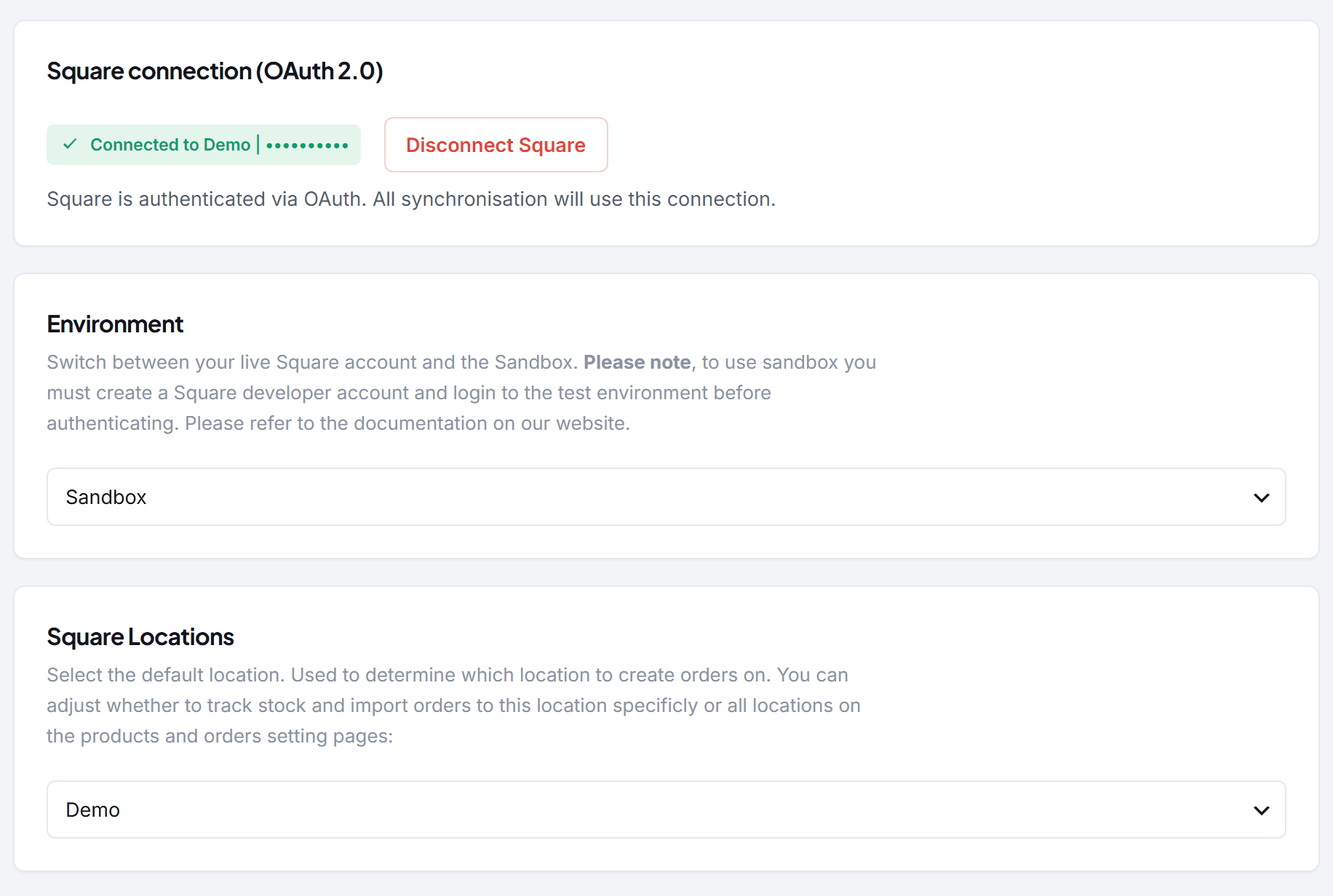
Choose your environment
Your live Square account — real catalog, real inventory, real charges. Use this for your live store.
Switching the environment changes what you authenticate against, so reconnect after switching. The payment gateway follows the connection's environment automatically.
Select your default location
If your Square account has multiple locations, pick the default location on the same screen. This is where:
- Orders placed on your website are created in Square
- Payments taken by the Square gateway are processed
- Stock is tracked by default — whether syncing tracks this location only or all locations is adjustable in the Products and Orders settings
Pick the location that represents your online operations. Changing it later doesn't move existing data — it changes where new orders and stock updates go.
Disconnecting
Click Disconnect Square on the Connection screen. Synchronization stops immediately, but nothing is deleted — your WooCommerce products, orders, and customers all stay, and the Square links on products are preserved, so reconnecting the same account picks up where you left off.
Next steps
Import Products
Bring your Square catalog into WooCommerce
Set Up Payments
Accept Square payments on your store
Troubleshooting
The connection redirect fails or loops
- Clear your browser cache/cookies and retry, or try another browser.
- Disable ad/privacy extensions that block redirects for the attempt.
- Security plugins that strip query parameters from admin URLs can break the OAuth return — allow-list your own admin.
Authorization is denied
- Make sure you're signed in to the right Square account, with owner or admin permissions.
- For Sandbox: you must be logged in to the developer test environment first — signing in with your live Square account against Sandbox fails.
Connected, but no locations appear
- Confirm the account has at least one active location in the Square Dashboard.
- Disconnect, then reconnect — the location list is refreshed on connection.