Import Products from Square
Browse your Square catalog in WordPress and import it into WooCommerce — pick the data points, batch to your server, and let it run in the background.
Bring your Square catalog into WooCommerce from a live catalog browser inside WordPress: see every Square item with its image, price, stock, and import status, then import one product, a selection, or the whole catalog. You choose exactly which data points come across, and the import runs in the background so you don't babysit it.
The Products page
Go to SWS Pro → Products to browse your Square catalog:
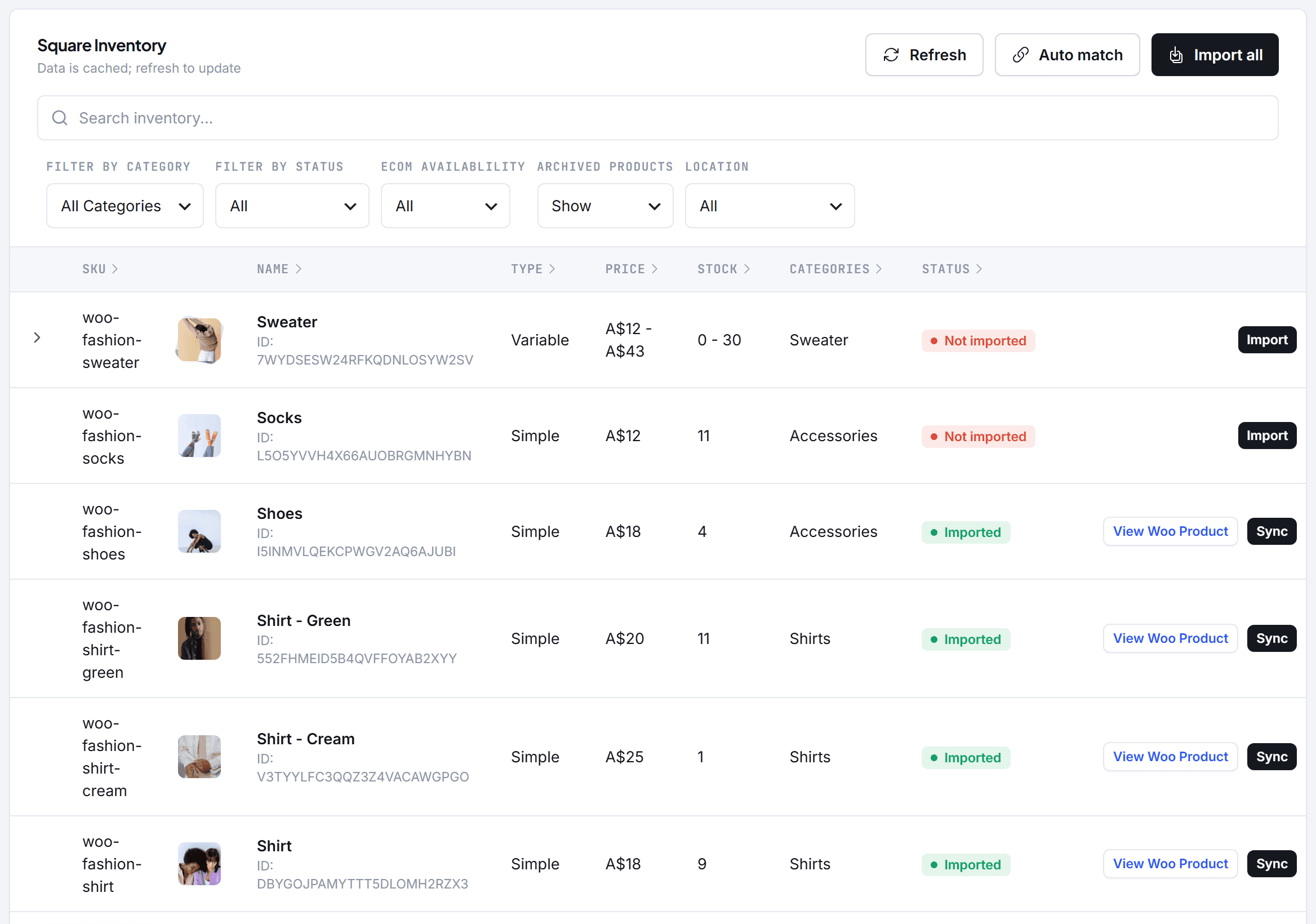
- Search and filters — by name/SKU, category, import status, e-commerce availability, archived items, and location.
- Status column — every item is either Not imported (with an Import button) or Imported (with View Woo Product and Sync buttons to jump to it or refresh it from Square).
- Variable products — the row chevron expands an item's variations.
- The list is cached for speed — hit Refresh to pull the latest from Square.
Three bulk tools sit above the list:
| Button | What it does |
|---|---|
| Import all | Imports the catalog (or your current selection) with the options below |
| Auto match | Links Square items to existing WooCommerce products by SKU, so already-built stores don't import duplicates |
| Refresh | Re-fetches the catalog from Square |
Running an import
Click Import all (or select specific products first with the row checkboxes):
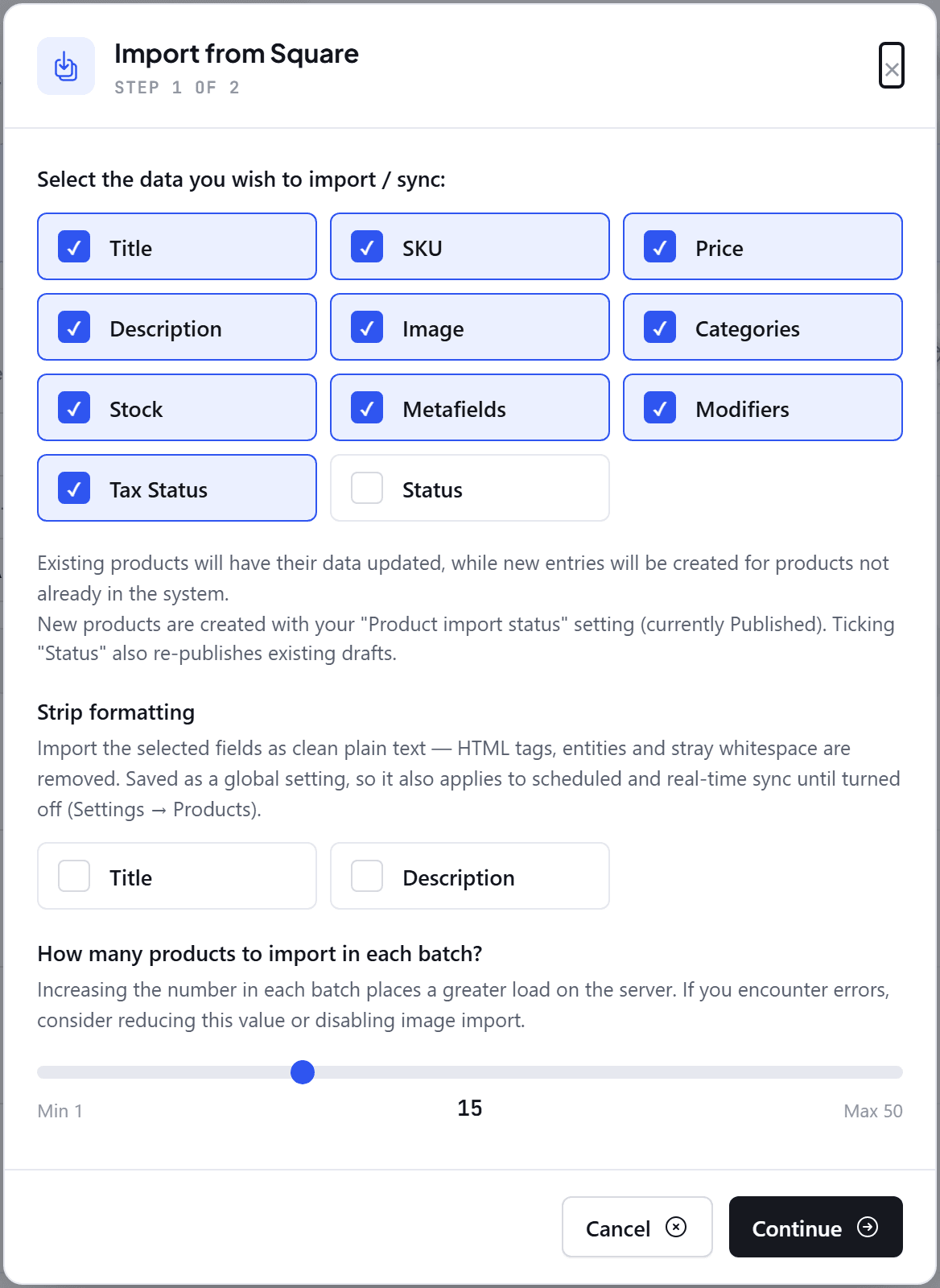
Pick your data points. Title, SKU, Price, Description, Image, Categories, Stock, Metafields, Modifiers, and Tax Status are on by default; Status is off. Only the ticked data points are written — untick anything you manage in WooCommerce and it's left alone. Since 10.5.3 the dialog remembers the data points you ticked as the site's default for the next import (saved when the user running the import can edit product settings), so a store that always wants Status ticked only needs to tick it once.
- Products already imported have those data points updated; products not yet in WooCommerce are created.
- New products are created with your Product import status setting (e.g. Published or Draft). Ticking Status also re-publishes existing drafts, so leave it off if you keep some imports unpublished on purpose.
Since 10.2.0, descriptions import from Square's rich (HTML) description by default — bold text, lists, and paragraphs from the Square Dashboard are preserved. Turn this off with the Rich product descriptions toggle under Settings → Products → Import Settings if you prefer plain text.
Optionally strip formatting. Tick Title and/or Description under Strip formatting to import those fields as clean plain text — HTML tags, entities, and stray whitespace are removed, with descriptions keeping their paragraph breaks. Handy when your Square catalog carries formatting you'd rather redo in WooCommerce. This is saved as a global setting (it also lives in Settings → Products → Import Settings), so it keeps applying to scheduled and real-time sync until you turn it off — which is what you want, since the next sync would otherwise re-import the formatted original over your cleaned-up copy.
Set the batch size (1–50, default 15). Bigger batches finish faster but load your server harder — if imports error out, lower the batch size or untick image import, the two heaviest operations.
Click Continue. If Categories is ticked, a Categories step comes next (see below); otherwise you go straight to the review. Confirm, and the import runs in the background through the plugin's queue — you can leave the page and check progress under SWS Pro → Queue.
Choosing WooCommerce categories
Without any mapping, the importer matches each Square category to a WooCommerce category by name and creates one when nothing matches. That is fine when both catalogs are organised the same way; when they are not, you end up with a second set of categories beside the ones your shop already uses.
There are two places to decide which WooCommerce category a Square category imports into:
In the import dialog. With Categories ticked, the dialog's Categories step lists every Square category the import can touch — only the ones on your selected products when you import a selection, or the whole catalog for Import all — with how many items each holds. Pick a WooCommerce category for each from the dropdown, or leave it on Match by name (create if missing). Below the list, choose what happens to categories you left on Match by name: create the category when there is no name match, or leave the product out of that category altogether. These choices apply to this import only and need no access to Settings — anyone who can import products can use the step, which is what you want when staff run imports but only an administrator manages the plugin's settings.
In Settings. Settings → Products → Import Settings → Category mapping holds the store-wide default. It applies to every Square → WooCommerce path — manual imports, scheduled sync and real-time (webhook) sync — and it is what the import dialog's step is pre-filled from. When categories also sync WooCommerce → Square, a mapped WooCommerce category exports as its mapped Square category instead of being matched by name.
The two work together: the dialog's choices are applied on top of the default for that import, so a Square category you did not change (or one outside your selection) keeps its default mapping.
Save as the default. If you can edit product settings, the Categories step also offers Save as the default mapping for scheduled and real-time sync. Tick it and the choices you made are written to the Category mapping setting when the import starts, so the next scheduled or real-time sync uses them too; a Category mapping saved as default notice confirms it. Staff without access to Settings do not see this option — their choices only ever affect the import they are running.
Variations
Square items with option sets (Size, Colour, …) import as WooCommerce variable products, with each Square variation becoming a WooCommerce variation — prices, SKUs, and stock included. Set the option sets up in Square first (Square Dashboard → Items → Options), then import.
A Square item with only a single variation imports as a simple product; if more variations are added in Square later, the product converts to a variable product on its next sync.
Already have the products in WooCommerce?
Don't import — link. Use Auto match (or the Bulk Match tool it points to) to connect Square items to your existing WooCommerce products by SKU. Matched products sync from then on exactly like imported ones, with no duplicates created.
After the import
- Spot-check a handful of products — pricing, images, stock, variations.
- Set up Sync Settings so imported products stay current automatically.
- Products link by Square catalog ID, so future syncs, orders, and stock movements all resolve to the right product.
Troubleshooting
The import stalls or products error out
- Lower the batch size in the import dialog, or untick Image — image sideloading is the heaviest part of an import.
- Check SWS Pro → Queue for the failing job and its error message.
- Server timeouts mid-batch resume automatically; a persistently failing batch is surfaced in the queue rather than hanging.
Images didn't come across
- Confirm the item actually has images in Square and Image was ticked.
- Check PHP's memory and upload limits — very large images can exceed them.
Images show as too small, or have no thumbnails
An import downloads the original file from Square and, by default, generates WordPress's thumbnail sizes in a background job afterwards. If that job fails on your server — very large photos and a low PHP memory limit are the usual cause — the image can appear without thumbnails, or WordPress can treat it as smaller than it is, even though the file itself is full size.
- Turn on Generate image sizes during the import under Settings → Products → Import Settings → Image sizes (since 10.5.3). Each product takes a little longer to import, but every image is complete when the import finishes, and any image whose background step never ran is fixed the next time its product syncs.
- For images already affected, WooCommerce → Status → Tools → Regenerate shop thumbnails reprocesses them in the background.
Stock is wrong after import
- With multiple Square locations, check which location(s) feed stock in Settings → Products (single location vs. combined).
- Confirm the count in Square for the location you track — the import copies what Square reports.
An item imported as simple but should be variable
Its Square item only has one variation. Add the missing variations in Square, then Sync the product — it converts to a variable product.