Installation
Download, install, and activate SquareSync for Woo Pro, and activate your licence.
Installing SquareSync for Woo Pro is a standard WordPress plugin upload: download the zip from your account, upload it in WordPress, activate, and enter your licence key.
Requirements
- WordPress 6.1 or higher (tested up to 6.9)
- WooCommerce 7.9 or higher
- PHP 8.0 or higher
- An active Square account
- A valid SquareSync for Woo Pro licence
Step 1: Download the plugin
- Log in to your SquareSync for Woo account
- Open the Downloads section and download the plugin
.zip
Don't unzip the file — WordPress installs plugins from the .zip directly.
(Safari users: turn off "Open safe files after downloading" so it isn't
auto-extracted.)
Step 2: Install and activate
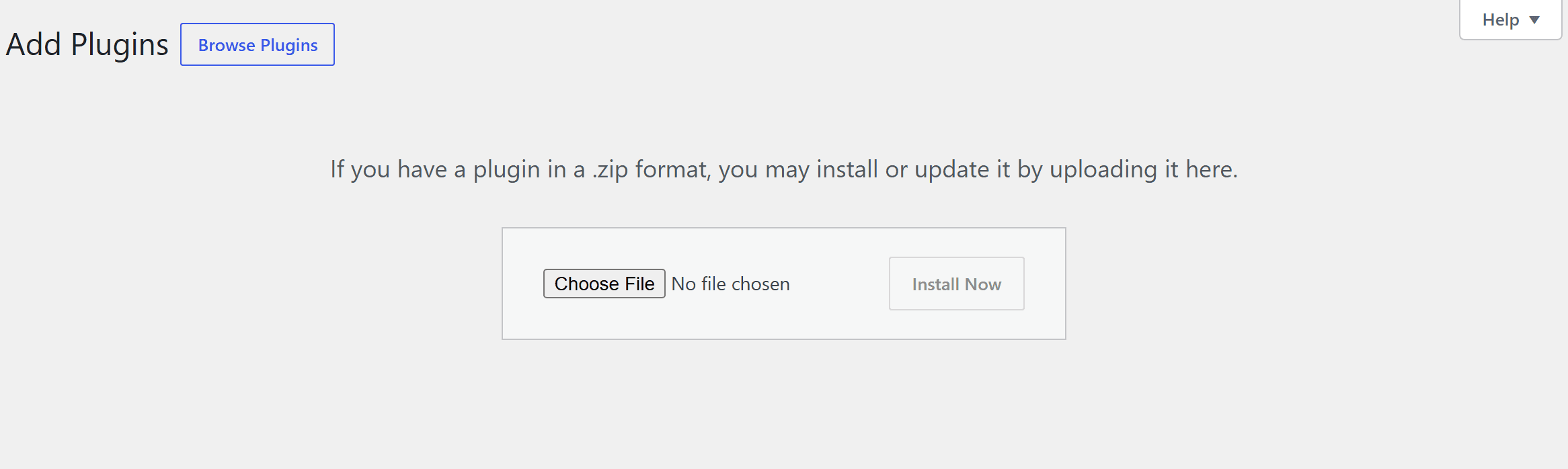
- In WordPress admin, go to Plugins → Add New → Upload Plugin
- Choose the downloaded
.zipand click Install Now - When the upload finishes, click Activate Plugin
Upgrading from the free version? Just install and activate Pro — the free plugin is deactivated automatically (you'll see a notice confirming it), and all of your existing links, settings, and synced data carry straight over. Both versions share the same data, so nothing is lost in the switch.
Step 3: Activate your licence
- Open SWS Pro in the admin menu
- Enter your licence key and the email address from your purchase
- Click Activate License
A green Licenced badge appears in the plugin's header when activation succeeds, and plugin updates are delivered on the WordPress Plugins screen like any other plugin.
Next steps
Connect to Square
Link your Square account to start syncing
Troubleshooting
"The link you followed has expired" or the upload fails
Your server's upload limit is smaller than the plugin zip. Raise upload_max_filesize and post_max_size (ask your host, or via php.ini), or upload the unzipped folder over SFTP to wp-content/plugins/ instead.
The plugin won't activate
- Check the requirements above — activation on PHP older than 8.0 or without WooCommerce active will fail with a notice.
- If a very old copy of the free version is installed, update it or remove it first; current Pro versions deactivate the free plugin automatically.
The licence won't activate
- Check the key for copy/paste whitespace and confirm the email matches your purchase.
- Check that your licence hasn't expired.
- Still stuck? Contact support with your order email.