Export Products to Square
Send WooCommerce products to Square — one at a time from the product editor, or in bulk from the products list — and keep them linked from then on.
Built your catalog in WooCommerce first? Export it to Square to sell the same products at your POS, with stock and data linked between the two from the moment of export. Single products export straight from the product editor; whole catalogs export in bulk from the products list.
Export a single product
Open the product in WordPress and find the Sync with Square box in the sidebar:
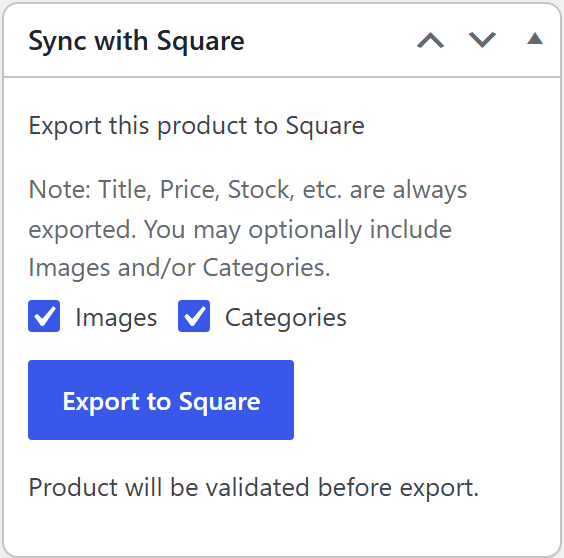
- Choose whether to include Images and/or Categories (title, price, SKU, stock, and variations always export)
- Click Export to Square
The product is validated first — the button shows Checking… while the plugin confirms the product can be represented in Square (and that it isn't already linked), so a broken export never half-lands. After a successful export the box switches to a Sync button: the product is now linked, and future changes flow through your sync settings.
What gets exported
| Data | Notes |
|---|---|
| Title, description | Always. Since 10.2.0 descriptions export as rich HTML (description_html), so formatting from the WooCommerce editor survives in Square — a developer filter (squarewoosync_export_html_description) restores the old plain-text behaviour if needed |
| Price, SKU | Always |
| Stock | Always — Square starts tracking with your WooCommerce count |
| Variable products | All variations, with their own prices/SKUs/stock |
| Images | Optional checkbox |
| Categories | Optional checkbox |
| Sold-out state | Since 10.2.0: products that don't manage stock but are marked Out of stock export with a Square "sold out" override at your location(s), so they can't be sold at the POS |
| Locations | By default items are available at every Square location; restrict this with Export locations under Settings → Products → Sync Behavior (since 10.2.0) |
Bulk export
- Go to Products in WordPress admin and select products with the checkboxes (filter first if useful)
- Open Bulk actions and choose Export to Square — or Export to Square (All Pages) to export every product matching your current filter, not just the visible page
- Click Apply
The export runs in the background through the plugin's queue — you can leave the page, and progress is visible under SWS Pro → Queue.
Products that already exist in Square shouldn't be exported again — that creates duplicates. Link them instead: the Auto match tool on SWS Pro → Products connects WooCommerce products to existing Square items by SKU. Export is for products Square doesn't have yet.
Product list tools
(since 10.2.0) The WooCommerce Products screen gains a few Square conveniences:
- Quick Edit / Bulk Edit — the per-product Square stock sync setting found on the product's Inventory panel: Both ways, Ignore Square's updates (WooCommerce still sends its stock to Square), or Paused (no stock sync either way). Quick Edit shows the current state; Bulk Edit adds No change for editing many products at once. (Before 10.4.22 this was an Ignore / Accept toggle; Ignore is now "Ignore Square's updates".)
- CSV exporter columns — WooCommerce's built-in product CSV export includes two extra columns: Square linked (yes/no) and Square Item ID (the linked catalog ID).
- CSV importer mapping — the Square Item ID column maps back onto the product's Square link on import, so links survive an export → edit → import round trip (useful for migrations and bulk relinking). Only import IDs you exported — a wrong ID links the product to the wrong Square item.
After exporting
- The product carries its Square catalog ID, so stock, price, and data changes sync both ways according to your sync settings.
- Sales at your Square POS reduce WooCommerce stock, and web sales reduce Square stock — one count, both channels.
- Want every new product exported automatically as you publish it? See Auto Create Products.
- Need to break the link (to re-export fresh, or stop syncing)? See Unlink Products.
Troubleshooting
There's no Export button on the product
- The product is already linked — the box shows a Sync button instead. Unlink it first if you genuinely want a fresh export.
- Confirm the Square connection is active and your licence is valid — the box requires both.
The export fails validation
The validation message tells you what Square rejected — the usual causes are variations without SKUs, or price/currency values Square can't accept. Fix the flagged field and export again.
The product isn't appearing in Square
- Bulk exports are queued — check SWS Pro → Queue for the job's status and any error.
- Check the right Square location: items are created against your configured default location.
I exported and now have duplicates in Square
Delete the duplicate in the Square Dashboard, then use Auto match (SWS Pro → Products) to link the WooCommerce product to the original Square item — matching by SKU — instead of re-exporting.