Delayed Capture & Saved Cards
Authorize a card at checkout and capture later from the order screen — full, partial, or void — plus mandatory card saving and charging Square cards on file for unpaid orders.
Some stores don't want to charge the card the moment an order is placed — wholesale accounts that confirm stock before billing, made-to-order goods, or anywhere the final amount can change between order and fulfilment. Delayed capture places a hold on the customer's card at checkout instead of charging it; you capture the payment from the WooCommerce order screen when you're ready, for the full amount or less. Alongside it, Require Card Save stores every card used at checkout on the buyer's Square customer profile, and any saved card can be charged directly from the order screen for unpaid orders.
No extra plugins are needed — this is built into the Square payment gateway from 9.13.0. Nothing changes until you switch the settings on: by default, payments capture immediately at checkout exactly as before.
Authorize vs. capture
An authorization reserves the funds on the customer's card — the money is held but hasn't moved, and the order sits On hold in WooCommerce. A capture completes that payment and takes the money. Until you capture, you can also void the authorization, which releases the hold without charging anything.
Square keeps online authorizations for a maximum of 7 days. If you don't capture within that window, Square cancels the hold automatically and the customer is never charged.
Requirements
- SquareSync for Woo Pro 9.13.0+ with the Square payment gateway enabled.
- A connected Square account (the same connection your payments already use).
Enabling delayed capture
- Go to WooCommerce → Settings → Payments and open the Square gateway's settings
- Under Payment Capture, set Payment Action to Authorize only — capture later from the order screen
- Save changes
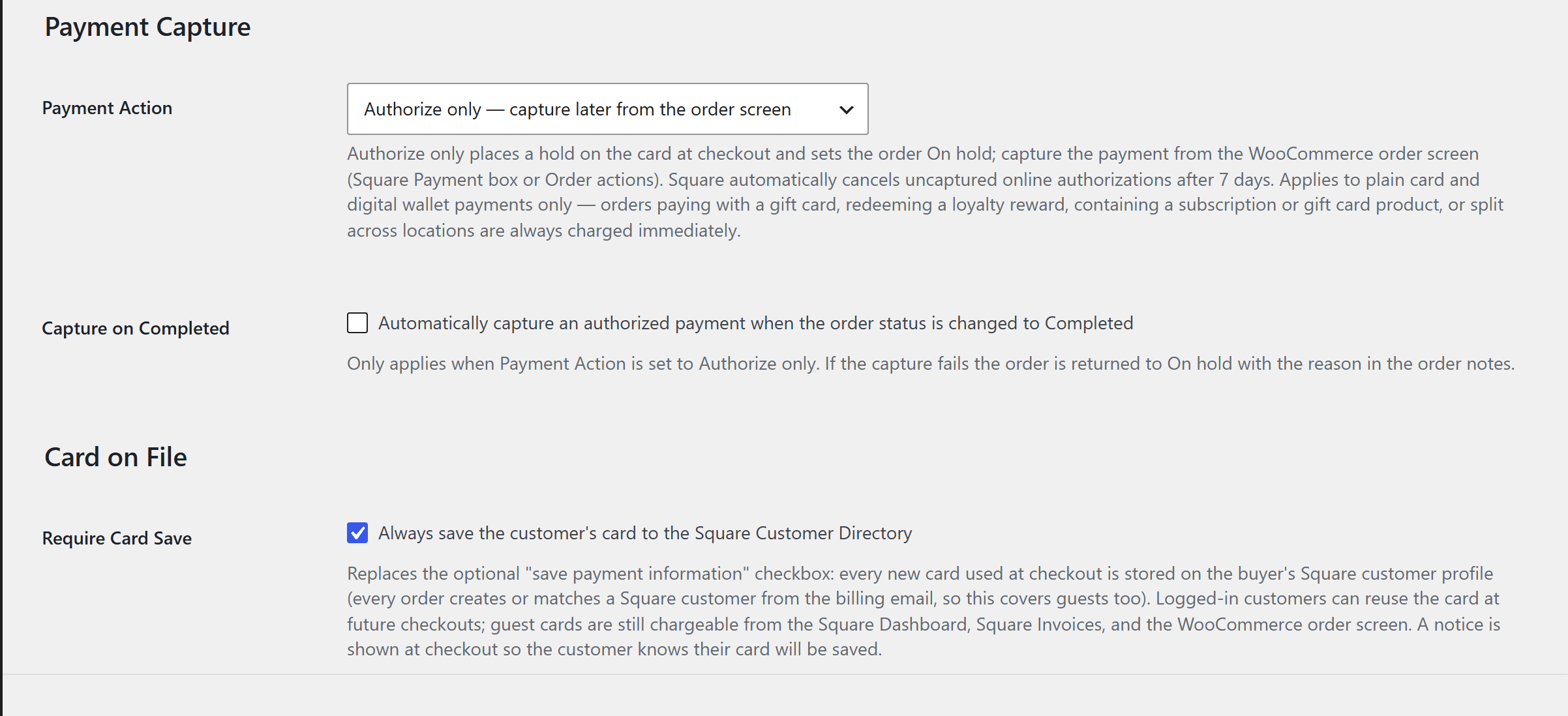
| Setting | What it does | Default |
|---|---|---|
| Payment Action | Charge immediately keeps today's behaviour; Authorize only holds the funds and sets the order On hold | Charge immediately |
| Capture on Completed | Automatically captures the authorization when you change the order status to Completed | Off |
| Require Card Save | Stores every card used at checkout on the buyer's Square customer profile — see Require Card Save | Off |
What still charges immediately
Authorize only applies to plain card and digital-wallet payments. These flows complete their payment as part of checkout and always charge immediately, even with Authorize only selected:
- Orders paying (fully or partly) with a Square gift card
- Orders redeeming a loyalty reward
- Orders containing a subscription or a gift card product
- Orders split across locations (Split Orders by Product Locations)
Capturing a payment
Every authorized order gets a Square Payment box on its order screen showing the held amount and when Square will release it:
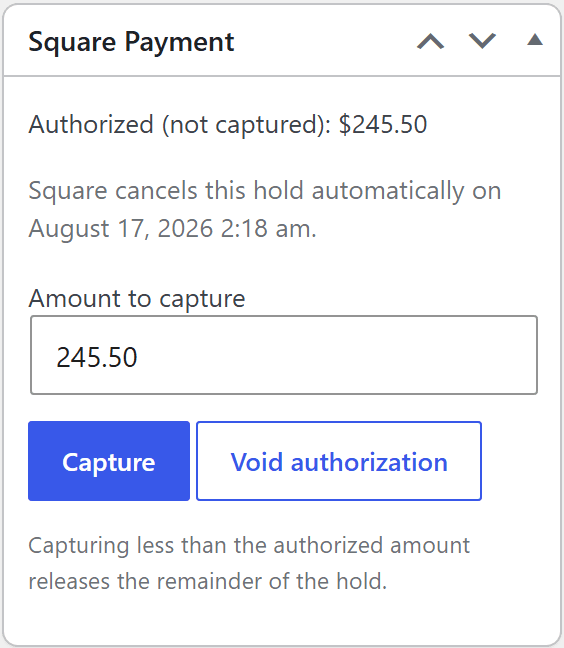
- Capture the full amount — leave the pre-filled amount and click Capture. The order is marked paid (Processing) and the Square order completes, so Square reporting records the sale as normal.
- Capture a partial amount — lower the amount first. The payment is adjusted down before capture and the remainder of the hold is released back to the customer. Typical wholesale flow: edit the WooCommerce order to what you're actually shipping, then capture the new total.
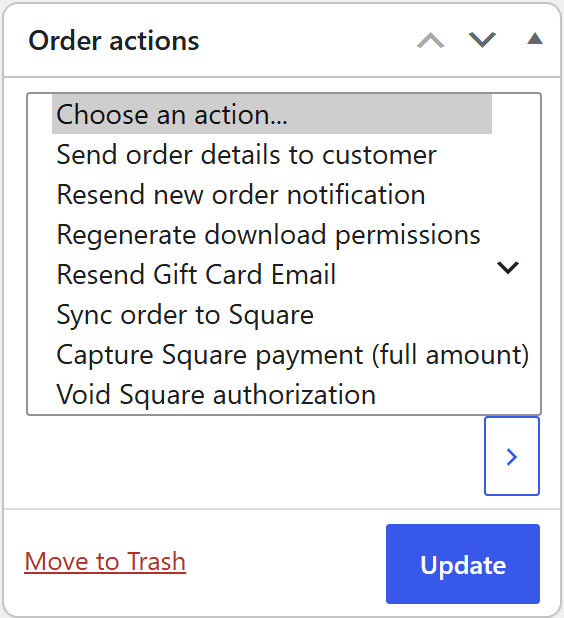
- Prefer the dropdown? Order actions has Capture Square payment (full amount) and Void Square authorization entries too.
With Capture on Completed enabled, marking the order Completed captures automatically — and if that capture fails, the order returns to On hold with the reason in the order notes, so a Completed order never silently hides an uncollected payment.
Capture within 7 days. Square cancels uncaptured online authorizations automatically after 7 days — the Square Payment box shows the exact date for each order. If the hold has expired, the box will tell you when you try to capture; ask the customer to pay again (or charge their saved card, below).
Voiding an authorization
Click Void authorization in the Square Payment box (or use the order action). Voiding:
- Cancels the payment on Square, releasing the hold on the customer's card
- Cancels the attached Square order
- Cancels the WooCommerce order and restocks it — on both platforms
- Releases any synced discount-code redemptions the order had reserved
Cancelling the WooCommerce order does the same thing: an authorized order that's cancelled voids its hold automatically, so funds are never left reserved on a card for an order you've abandoned.
Stock and reporting stay accurate
Stock reduces once, when the order is placed (the authorization puts it On hold, which reduces stock like any paid order), and the reduction syncs to Square as usual. When you capture — even days later — the plugin prevents Square's own capture-time stock movement from deducting the sale a second time, and Square still counts exactly one sale for the order. Voiding restocks both sides. You don't need to do anything for this; it's automatic.
Require Card Save
Under Card on File in the same settings screen, Require Card Save replaces the optional "save payment information" checkbox: every new card used at checkout is stored on the buyer's profile in the Square Customer Directory, and a notice at checkout tells the customer their card will be saved.
- Logged-in customers can reuse the saved card at future checkouts and manage it under My Account → Payment methods.
- Guests are covered too — every order creates or matches a Square customer from the billing email, and the card attaches to that profile. Guests can't reuse it at checkout themselves (there's no account to list it under), but the card is fully chargeable from the Square Dashboard, Square Invoices, and the WooCommerce order screen.
- Cards already saved keep working; paying with a saved card doesn't re-save anything.
Saving is always forced for subscription orders regardless of this setting, exactly as before.
Charging a saved card from the order screen
Any unpaid order (Pending, Failed, or On hold without an authorization) whose customer has cards on file gets the Square Payment box with a card selector and a Charge saved card button. Charging:
- Creates the Square order and charges the selected card immediately for the current order total
- Marks the WooCommerce order paid, with normal stock and reporting behaviour
- Works for account customers and guest orders alike (guests are matched by billing email)
- Only ever offers cards that belong to that customer's Square profile
This pairs naturally with delayed capture on longer timelines: if an authorization expires past the 7-day window, charge the customer's saved card instead of asking them to check out again.
Refunds
Captured payments refund exactly like any other Square payment — from the WooCommerce order screen or the Square Dashboard. An uncaptured authorization can't be refunded (there's nothing to refund yet) — void it instead.
Troubleshooting
The Square Payment box isn't on the order
The box appears on orders with a Square authorization (whatever its state), and on unpaid orders whose customer has saved cards. A paid order with no authorization history and no saved cards has nothing to show.
Capture says the payment can't be captured
The authorization has expired or was cancelled — Square holds online authorizations for at most 7 days. Ask the customer to pay again, or charge their saved card from the same box if they have one.
Partial capture was rejected
Whether an authorization's amount can be adjusted down depends on the card. If Square rejects the adjustment, the exact reason is added to the order notes — you can still capture the full amount and refund the difference afterwards.
Orders skip the authorization and charge immediately
That order used a flow that always captures at checkout — gift card payment, loyalty redemption, subscription, gift card product, or a location-split order. See What still charges immediately.
A customer's card isn't offered for charging
The card selector only shows cards on that customer's Square profile. For guest orders the customer is matched by billing email — if the email on the order differs from the one used when the card was saved, Square won't match them.